Log In

Account Management

Subscription Plans

What it is

Subscription plans determine your access level and usage limits within the platform. There are four tiers, each offering different trade limits, capital caps, leverage, and notification allowances. You can upgrade or downgrade your plan at any time.

Where to find it

Open the Subscription page to view all available plans and your current subscription status.
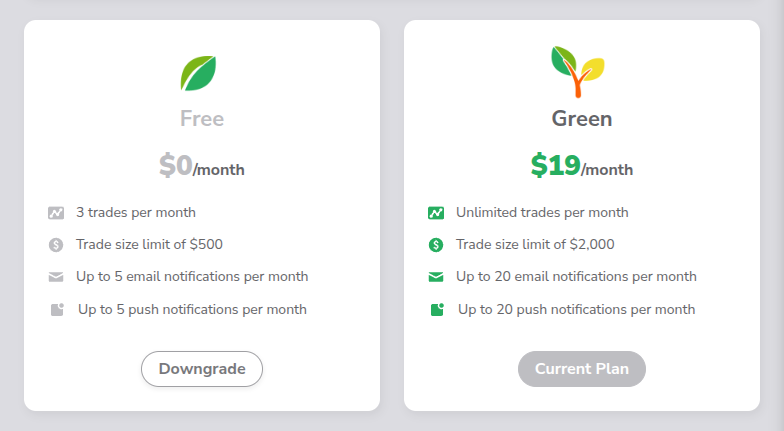
Screenshot: Subscription page with plan tiers and usage overview

How it works

Four subscription tiers are available:

PlanTrades per MonthMax CapitalMax LeverageEmail NotificationsPush Notifications
SEED3$500x25 per month5 per month
GREENUnlimited$2,000x320 per month20 per month
PROUnlimited$5,000x4UnlimitedUnlimited
UNLIMITEDUnlimited$10,000x5UnlimitedUnlimited

The Current Subscription card at the top of the page shows your current plan name and tier, usage versus limits for trades, capital, leverage, email notifications, and push notifications, and your subscription renewal date.

Below the current subscription card, each plan is displayed with its features and an action button

  • Upgrade
  • Downgrade

Key details

  • The SEED plan is the default for new accounts and requires no payment.
  • Trade limits reset monthly based on your subscription renewal date.
  • Notification limits (email and push) also reset monthly.
  • Capital limits define the maximum amount the bot can invest per trade.
  • Both upgrading and downgrading takes effect immediately.
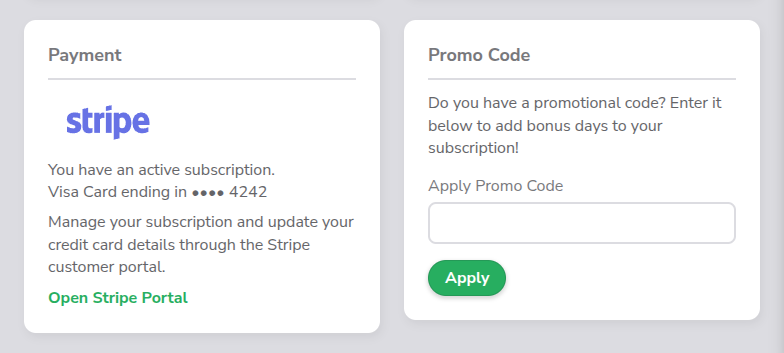
Promo Codes

What it is

Promo codes are promotional codes that add bonus days to your subscription when redeemed. They provide a way to extend your subscription without additional payment.

Where to find it

The promo code form is located on the Subscription page, below the subscription plans.

Screenshot: Promo code input field and Apply button

How it works

  1. Enter a promotional code into the text input field.
  2. Click the Apply button to submit the code.
  3. If the code is valid, bonus days are added to your current subscription and a success message is displayed.
  4. If the code is invalid or has already been used, an error message is displayed.

Key details

  • Each promo code can only be used once per account.
  • Bonus days are added to your current subscription's expiration date, extending it by the number of days associated with the code.
  • You will receive immediate feedback on whether the code was accepted or rejected.
  • Promo codes work with any subscription tier above SEED, the bonus days apply regardless of your current plan.

Push Notifications Setup

What it is

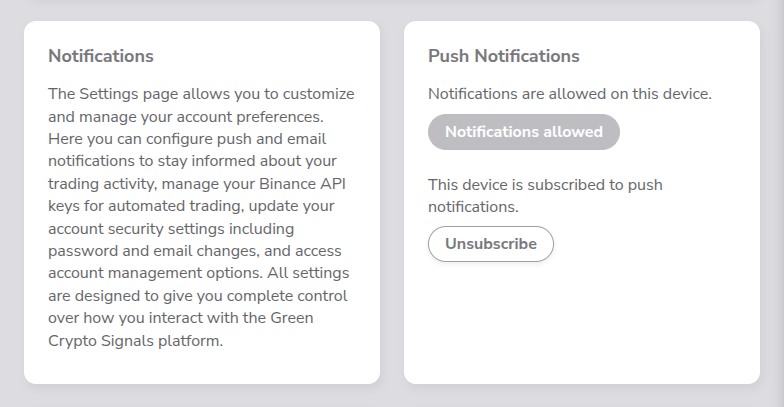
Push notifications setup is the one-time process of granting browser permission and subscribing your device to receive push alerts. This is a prerequisite for all push notification toggles (covered in section 9), until setup is complete, no push notifications can be delivered.

Where to find it

Open the Settings page and scroll to the Push Notifications card. The setup controls are located below the push notification toggles for Open Position and Close Position.

Screenshot: Push Notifications setup with Allow and Subscribe buttons

How it works

The setup involves two sequential steps, each with its own status display and action button:

Step 1 ∙ Allow Notifications

StateStatus TextButton
Permission not granted"Notifications are not allowed on this device." with a red X indicatorAllow Notifications (clickable)
Permission granted"Notifications are allowed on this device."Notifications allowed (inactive)

Click Allow Notifications to trigger your browser's built-in permission prompt. You must grant permission before proceeding to step 2.

Step 2 ∙ Subscribe Device

StateStatus TextButton
Not subscribed"This device is not subscribed to push notifications." with a red X indicatorSubscribe (clickable)
Subscribed"This device is subscribed to push notifications."Unsubscribe (clickable)

Click Subscribe to register your device with the server. Once subscribed, push notifications configured via the toggles (section 9) will be delivered to this device.

Key details

  • Both steps must be completed in order, you cannot subscribe a device without first granting browser notification permission.
  • This setup only needs to be done once per browser or device.
  • If you switch browsers, use a different device, or clear your browser data, you will need to repeat the setup.
  • You can unsubscribe at any time by clicking Unsubscribe, which stops push notifications on that device without revoking browser permission.
  • This setup is distinct from the push notification toggles in section 9. The toggles control which event types trigger push notifications; the setup here controls whether your device can receive them at all.

Binance API Keys

What it is

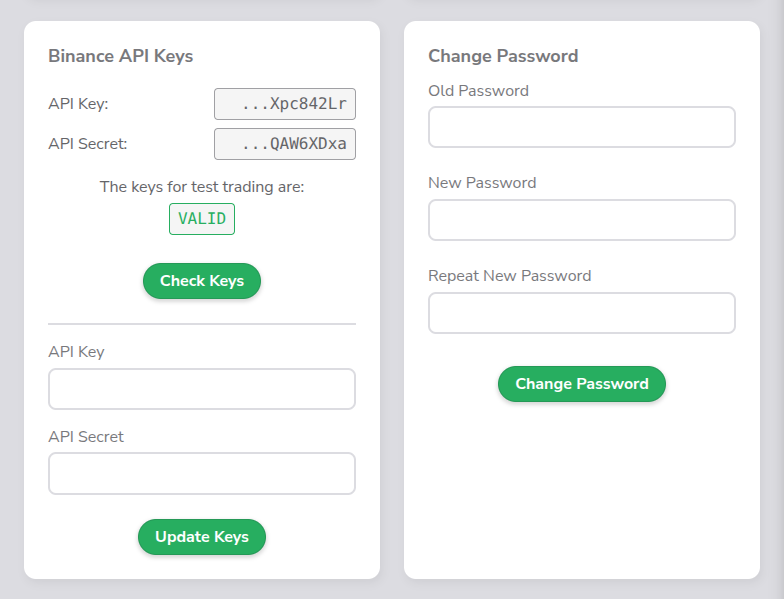
Binance API keys connect the platform to your Binance exchange account, allowing the trading bot to execute trades on your behalf. The Settings page lets you view your current key status, validate existing keys, and update them with new credentials.

Where to find it

Open the Settings page and scroll to the Binance API Keys card.

Screenshot: Binance API Keys card with key status and action buttons

How it works

The Binance API Keys card is split into two sections:

Current Keys Display (left side)

Shows your stored API credentials in truncated form:

  • API Key: displays a shortened version of your key (e.g. "...Xfc841Lr") or "..." if no key is stored.
  • API Secret: displays a shortened version of your secret or "..." if no secret is stored.

Key Status (right side)

Displays the validation status of your keys:"

StatusColorTrading Type
VALIDGreen"for live trading" or "for test trading"
INVALIDRed"for live trading" or "for test trading"
MISSINGDefault"for trading" (general)

Actions

  • Check Keys ∙ Validates your currently stored keys by testing them against the Binance API. The status display updates to reflect whether the keys are valid or invalid.
  • Update Keys ∙ You enter a new API Key and API Secret, then submit them to replace the stored credentials. Both fields are required.

Key details

  • The platform distinguishes between live trading and test trading keys. The status display indicates which type is currently configured.
  • Key values are never shown in full, only a truncated preview is displayed for security.
  • If keys are missing or invalid, the Overview page shows a warning: "Missing valid Binance API keys. Setup required for automated trading.".
  • Valid keys are required for the trading bot to function. Without them, the bot cannot open or close positions on your Binance account.

Change Password

What it is

The Change Password feature lets you update your account password directly from the Settings page. It requires your current password for verification and the new password entered twice for confirmation.

Where to find it

Open the Settings page and scroll to the Change Password card.

Screenshot: Change Password form with three password fields

How it works

The Change Password form contains three fields:

FieldTypeRequired
Old PasswordPassword inputYes
New PasswordPassword inputYes
Repeat New PasswordPassword inputYes
  1. Enter your current password in the Old Password field.
  2. Enter your desired new password in the New Password field.
  3. Re-enter the new password in the Repeat New Password field.
  4. Click the Change Password button to submit.

After submission, the server validates the request and returns a response:

  • Success: A dialog box confirms the password was changed.
  • Error: A dialog box displays the error message (e.g. incorrect old password, mismatched new passwords).

Key details

  • All three fields must be filled in before submitting.
  • All password fields are cleared after every submission attempt, whether successful or not, as a security measure.

Change Email

What it is

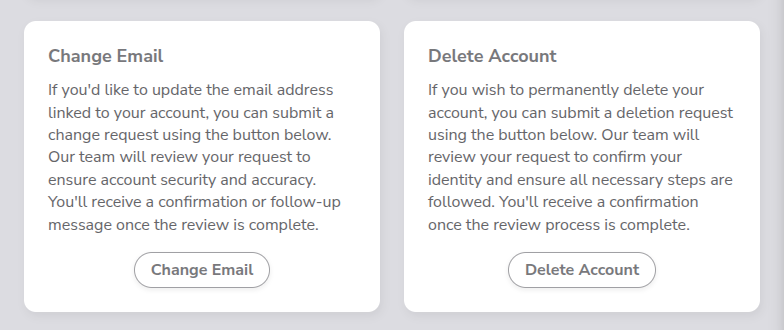
The Change Email feature lets you request a change to the email address associated with your account. Because email changes affect account security, they are processed manually by the support team rather than applied instantly.

Where to find it

Open the Settings page and scroll to the Change Email card.

Screenshot: Change Email card with request button

How it works

  1. Click the Change Email button.
  2. A confirmation dialog appears.
  3. Click YES to submit the request. This sends a support ticket to the team.
  4. Click NO to cancel and close the dialog.

After clicking YES, the server confirms the request was sent.

Key details

  • This feature does not change your email immediately. It submits a request that the support team reviews and processes manually.
  • You will receive a follow-up confirmation once the team has reviewed and completed the email change.

Delete Account

What it is

The Delete Account feature lets you request permanent deletion of your account. Because this action is irreversible, it is processed manually by the support team who verify your identity before proceeding.

Where to find it

Open the Settings page and scroll to the Delete Account card.

Screenshot: Delete Account card with deletion request button

How it works

  1. Click the Delete Account button.
  2. A confirmation dialog appears.
  3. Click YES to submit the deletion request. This sends a deletion ticket to the team.
  4. Click NO to cancel and close the dialog.

After clicking YES, the server confirms the request was sent.

Key details

  • This feature does not delete your account immediately. It submits a request that the support team reviews and processes manually.
  • The team will verify your identity before proceeding with deletion to protect against unauthorized requests.
  • You will receive a confirmation once the review process is complete.
  • Account deletion is permanent and irreversible once the team has processed the request.

Ready to Start Trading Smarter?

Create your free account and set up in under 5 minutes with our Quick Setup wizard.

Encryption iconAPI keys encrypted at restSecurity iconTrade-only permissions, no withdrawal accessTesting iconPractice risk-free with testnet mode
Get Started for Free

No credit card required.