Log In

Trading

Trading Strategies

What it is

Trading strategies are machine learning powered algorithms that analyze market data and generate buy and sell signals. Each strategy comes with historical performance data so you can evaluate it before committing. Only one strategy can be active for the trading bot at a time.

Where to find it

Open the Trading page. You will see two sections: Selected Strategy (your current active strategy) and Strategies (all available strategies to choose from). During first-time setup, the Quick Setup wizard on the Overview page also walks you through strategy selection.
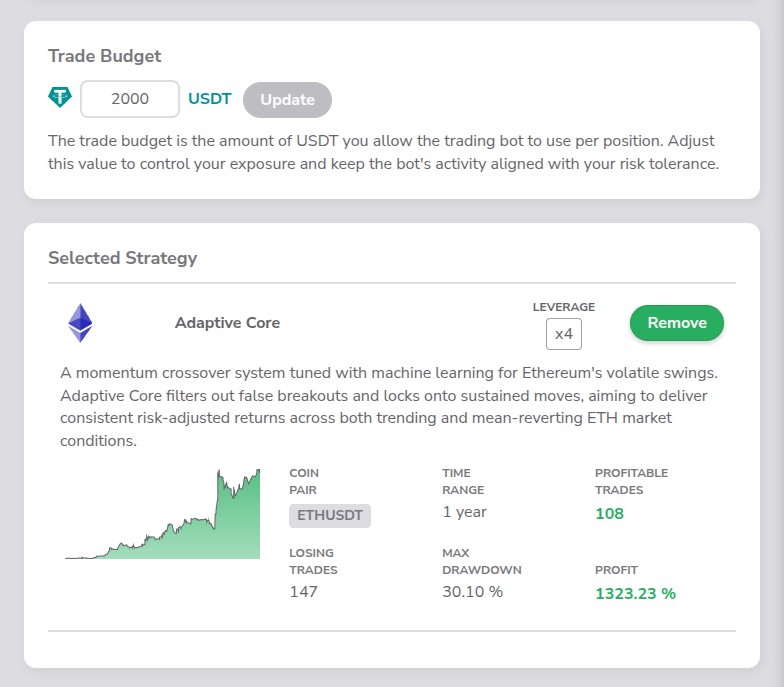
Screenshot: Trading page with strategy cards and performance metrics

How it works

Each strategy card displays the strategy name, a description, and a profit chart showing historical performance. Below the chart you will find six performance metrics:

MetricDescription
TIME RANGEThe period the backtest covers (currently "1 year")
LEVERAGEThe leverage multiplier used in the backtest (e.g. "x 5")
PROFITABLE TRADESTotal number of trades that ended in profit (shown in green)
LOSING TRADESTotal number of trades that ended in a loss
MAX DRAWDOWNThe largest peak-to-trough decline, shown as a percentage
PROFITOverall return for the backtest period, shown as a percentage in green

To the right of the strategy name there is a LEVERAGE dropdown where you can choose your preferred leverage multiplier before selecting the strategy. Available leverage options are specific to each strategy.

  • Click Select to make a strategy your active strategy.
  • Once a strategy is active, it moves to the Selected Strategy section, where the leverage value is displayed as a fixed label (no longer a dropdown) and the button changes to Remove.
  • Click Remove to deactivate the strategy.

Key details

  • Only one strategy can be active at a time. Selecting a new one replaces the current one.
  • The profit chart visualizes the strategy's historical cumulative returns.
  • Max drawdown and profit values are displayed as percentages (e.g. "12.50 %").
Trading Bot

What it is

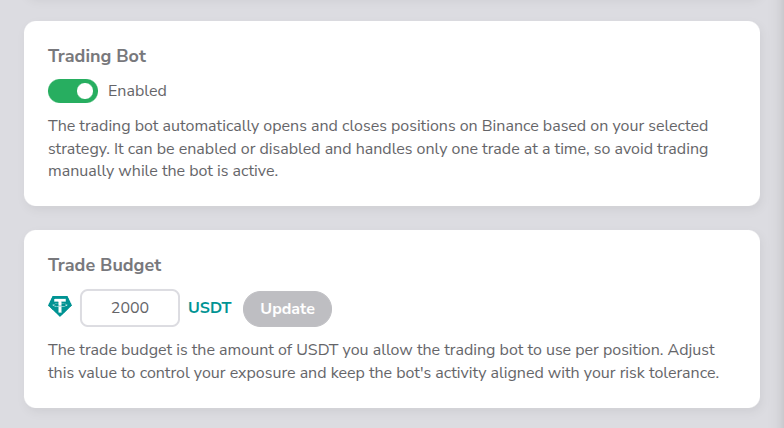
The trading bot automatically executes trades on your Binance account based on signals from your selected trading strategy. It monitors the market around the clock so you do not have to. You can enable or disable it at any time. The bot handles only one trade at a time, so to keep its behavior predictable, avoid placing manual trades on Binance while it is enabled.

Where to find it

The Trading Bot card is at the top of the Trading page. During first-time setup, step 3 of the Quick Setup wizard also lets you enable it.

Screenshot: Trading Bot card with enable/disable toggle

How it works

The Trading Bot card contains a toggle switch with two states:

  • Enabled ∙ the bot is actively monitoring signals and will open or close positions automatically.
  • Disabled ∙ the bot is paused and will not execute any trades.

Click the toggle to switch between states.

Key details

  • The bot requires two things to function: valid Binance API keys and a selected trading strategy. Without either, it cannot execute trades.
  • The bot manages only one position at a time. While it is enabled, do not open or close trades manually on Binance, as this can desynchronize the bot's tracking of your position.
  • Binance API keys are configured on the Settings page under Binance API Keys. You enter an API Key and API Secret, then use the Check Keys button to verify they are valid. Keys can be set for live trading or test trading.

Trade Signals

What it is

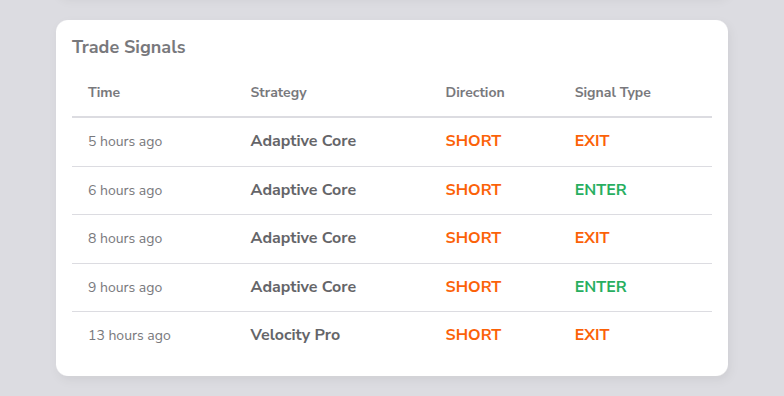
Trade signals are notifications generated by trading strategies when they detect an opportunity to enter or exit a position. The Trade Signals table on the Overview page shows a log of recent signals so you can track what the strategies are recommending.

Where to find it

Open the Overview page and scroll to the Trade Signals section.

Screenshot: Trade Signals table with recent signal entries

How it works

The Trade Signals table has four columns:

ColumnDescription
TimeWhen the signal was generated, displayed as relative time (e.g. "5 minutes ago", "2 hours ago")
StrategyThe name of the strategy that generated the signal
DirectionEither LONG (expecting price to go up) or SHORT (expecting price to go down)
Signal TypeEither ENTER (open a new position) or EXIT (close the current position)

Key details

  • Signals are separate from trades. A signal represents the strategy's recommendation; a trade represents the bot's actual execution on your Binance account.
  • Time values update automatically using relative formatting, so you always see how recent a signal is.

User Trades

What it is

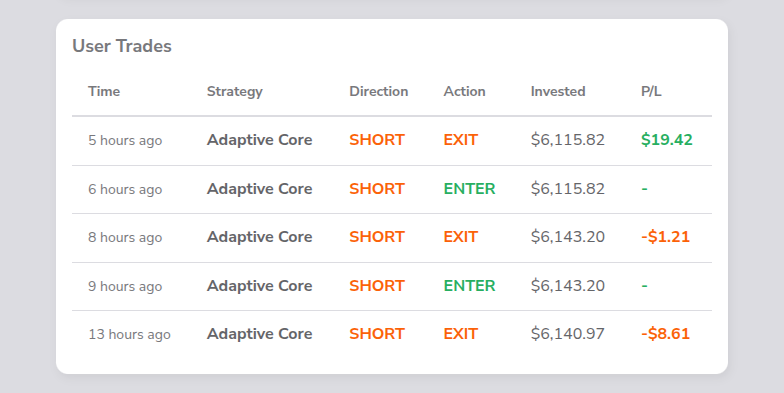
User Trades is a record of trades the bot has executed on your Binance account. It shows what was traded, how much was invested, and the profit or loss for each completed round-trip (enter + exit).

Where to find it

Open the Overview page and scroll to the User Trades section, located below Trade Signals.

Screenshot: User Trades table with trade history and P/L values

How it works

The User Trades table has six columns:

ColumnDescription
TimeWhen the trade was executed, displayed as relative time (e.g. "3 hours ago")
StrategyThe name of the strategy that triggered the trade
DirectionEither LONG or SHORT, color-coded the same way as in Trade Signals
ActionEither ENTER (position was opened) or EXIT (position was closed), color-coded by type
InvestedThe amount invested in the trade, formatted as USD (e.g. "$150.00")
P/LThe profit or loss for the trade

Open Position

What it is

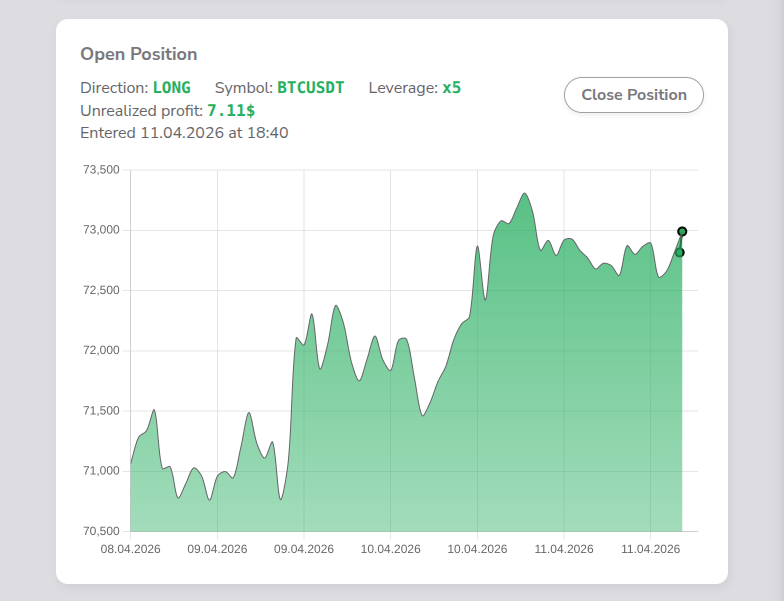
The Open Position card shows the details of your currently active trade in real time. It includes the position direction, trading pair, leverage, unrealized profit or loss, and a price chart. You can also manually close the position from here.

Where to find it

The Open Position card appears on both the Overview page and the Trading page. On the Overview page it sits at the top; on the Trading page it is at the bottom, below the Strategies section.

Screenshot: Open Position card on the Trading page

How it works

When you have an active position, the card displays the following information:

  • Direction: The position direction (e.g. LONG or SHORT)
  • Symbol: The trading pair (e.g. BTCUSDT)
  • Leverage: The leverage multiplier (e.g. x5)
  • Unrealized profit / Unrealized loss: The current floating P/L in dollars. If the position is profitable, it shows "Unrealized profit:" in green. If the position is at a loss, it shows "Unrealized loss:" in red.
  • Entry timestamp: Displayed as "Entered DD.MM.YYYY at HH:MM", showing exactly when the position was opened.

Below the position details is a price chart that shows the trading pair's price movement over a 3-day window. The chart includes a line from your entry price to the current price, color-coded green when the position is in profit and red when it is at a loss (for LONG positions).

A Close Position button appears near the chart, allowing you to close the position manually.

Key details

  • When no position is open, the card displays: "You don't have an open position."
  • Closing a position is irreversible once confirmed.

Available Balance

What it is

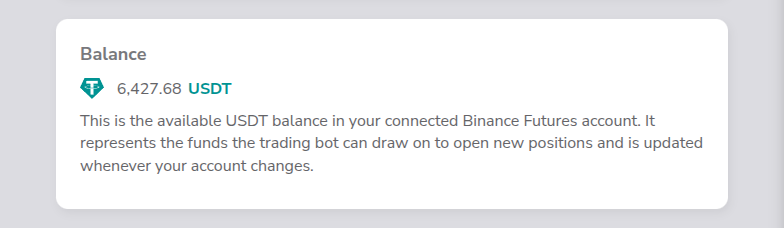
The available balance is the live USDT balance pulled from your connected Binance Futures account. It represents the funds the trading bot can draw on to open new positions. The value updates whenever your account changes, after deposits, withdrawals, or realized profit and loss from closed trades.

Where to find it

Open the Overview page. The available balance is displayed alongside your trading information, so you always know how much USDT is available before the bot opens its next position.

Screenshot: Available USDT balance on the Overview page

How it works

The balance is fetched directly from Binance via the API connection you configured in Settings under Binance API Keys. The app does not store funds, all USDT remains in your Binance Futures account at all times. Whenever a trade is opened or closed, or when you deposit or withdraw on Binance, the balance shown in the app reflects the new value.

Key details

  • The balance is read-only inside the app, you can only change it by depositing, withdrawing, or trading on Binance directly.
  • Valid Binance API keys are required. If keys are missing or invalid, the balance cannot be displayed and the bot cannot open new positions.
  • If your available balance is too low for the configured trade budget, the bot will not be able to open a new position until the balance is replenished.
  • Live trading and Binance testnet balances are separate. The displayed value matches whichever environment your API keys are configured for.

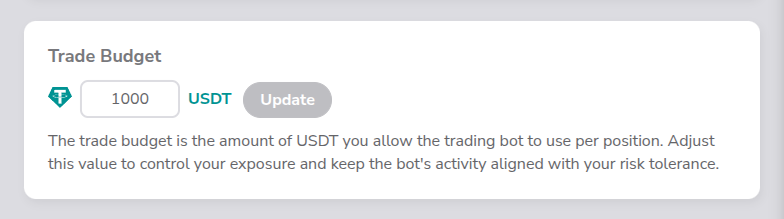
Trade Budget

What it is

The trade budget is the amount of USDT you allow the trading bot to use per position. It controls the size of each trade the bot opens, giving you a direct lever to manage your exposure and align the bot's activity with your personal risk tolerance.

Where to find it

Open the Trading page. The Trade Budget setting is displayed alongside the trading bot controls, where you can review and adjust the value at any time.

Screenshot: Trade Budget setting on the Trading page

How it works

You enter the trade budget as a USDT amount. Whenever the bot opens a new position, it uses that amount as the position size. Combined with the strategy's leverage multiplier, the trade budget determines how much capital is committed to each trade and, therefore, the potential gain or loss.

Key details

  • Changes to the trade budget apply only to future positions. The currently open position, if any, keeps the budget that was active when it was opened.
  • If the value of the trade bugdet exceeds your balance, the bot will trade with the whole available USDT balance.
  • Higher trade budgets amplify both gains and losses. Adjust the value to match the level of risk you are comfortable with at any given time.

Ready to Start Trading Smarter?

Create your free account and set up in under 5 minutes with our Quick Setup wizard.

Encryption iconAPI keys encrypted at restSecurity iconTrade-only permissions, no withdrawal accessTesting iconPractice risk-free with testnet mode
Get Started for Free

No credit card required.